This article will discuss the process of adding part libraries and DRC rule files to Diptrace. The repository for all of the MacroFab-specific Diptrace files can be found on our Github. You can also find instructions covering how to clone the repository onto your computer.
Importing MacroFab Part Libraries into Diptrace PCB
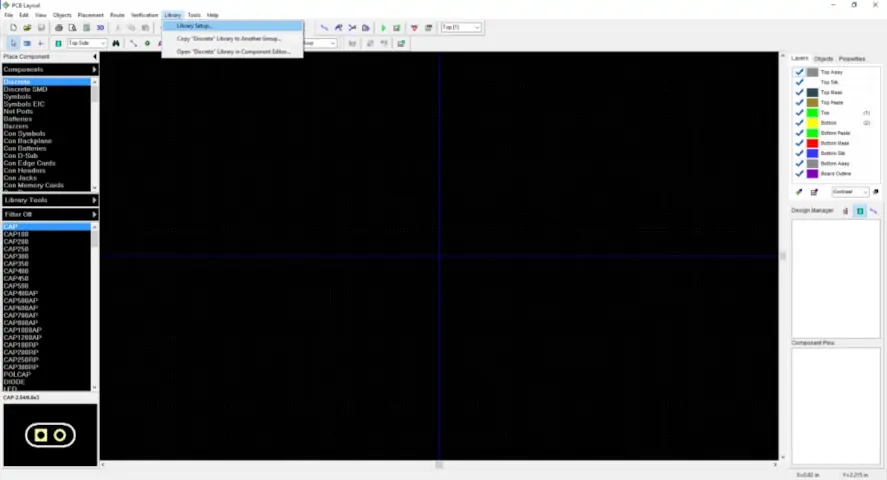
Open a copy of Diptrace PCB and navigate to Library -> Library Setup…
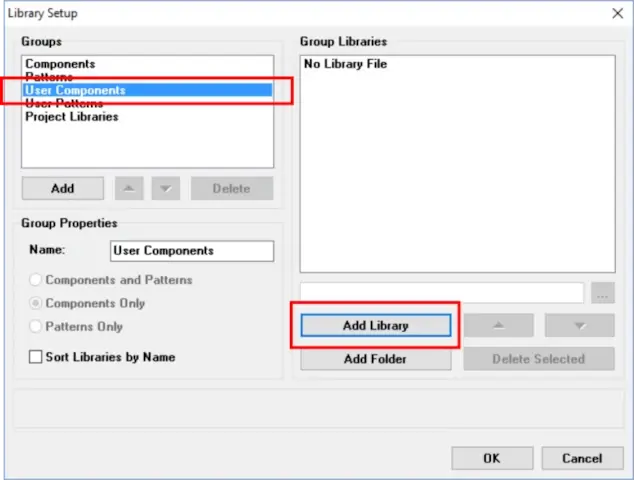
On this screen, select “User Components” from the options in the Groups section and press “Add Library”
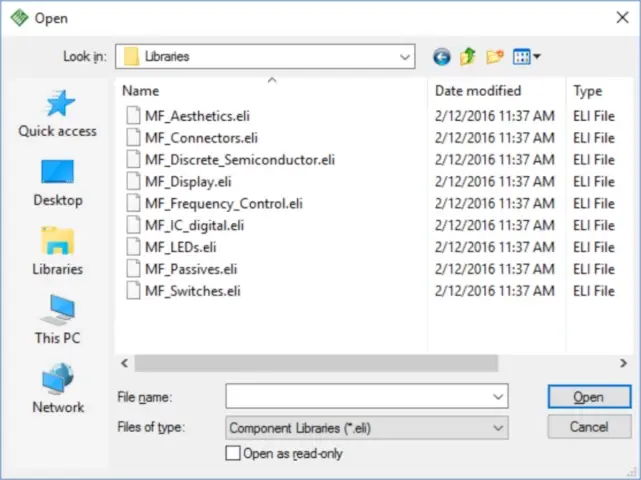
Navigate to the directory that the Github repository was cloned into. In most cases, the cloned directory will be:
C:\Users\<USER NAME>\Documents\GitHub\EDALibraries\Diptrace\LibrariesYour file path may be different. Select all of the library files and press open.
The MacroFab libraries will now be included in your “User Components” and are ready to use.
Importing MacroFab Rule Files Into Diptrace
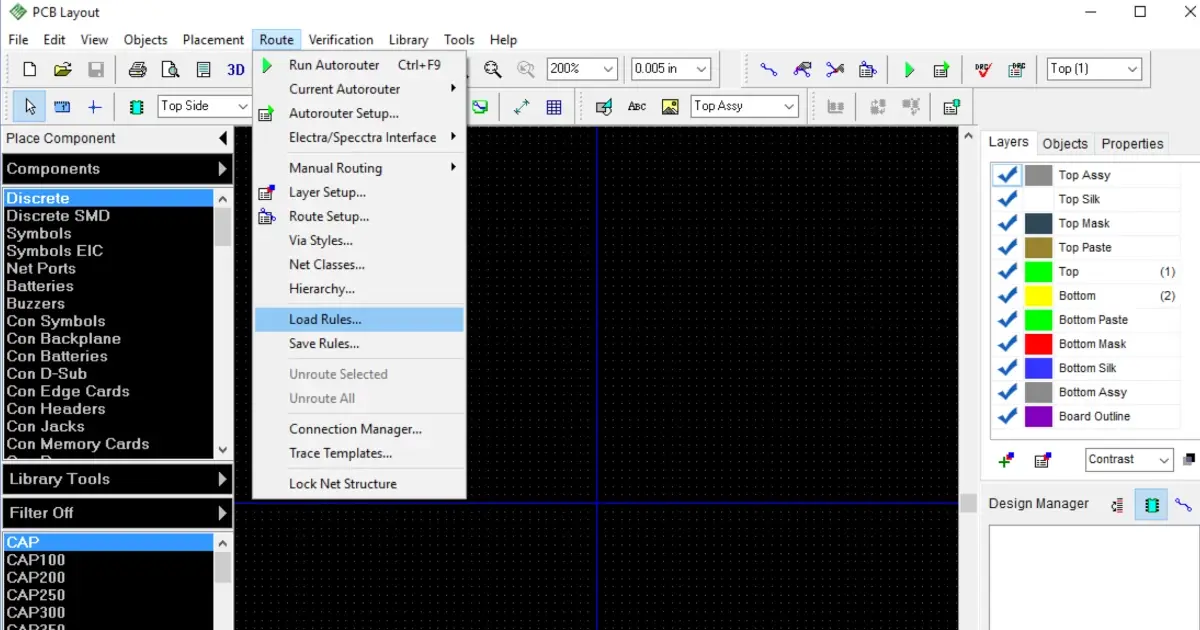
To import a rule file into Diptrace select Route -> Load Rules
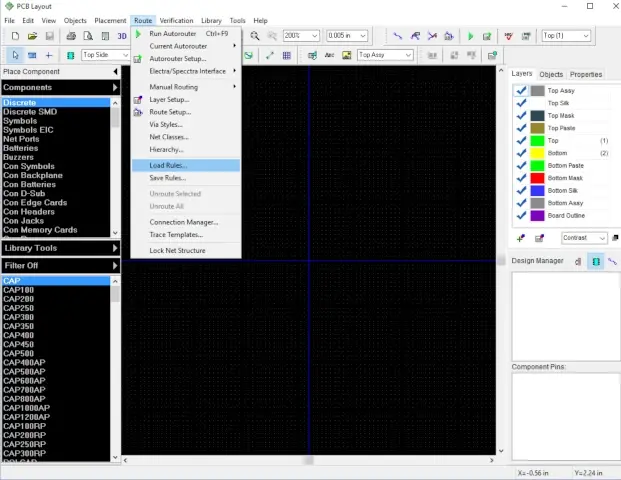
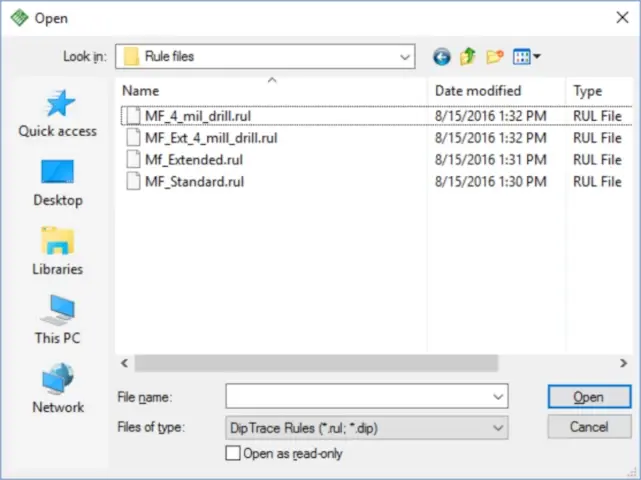
Navigate to the rule files within the cloned Github repository on your computer. In most cases, the cloned directory will be:
C:\Users\<USER NAME>\Documents\GitHub\EDALibraries\Diptrace\Rule filesAlthough, your path may be different.
In this window you select one of 4 rule files. Most PCBs will use MF_Standard.rul. You can find the rule definition for these files on our capability page here. Once you have selected the rule file, press Open. The rule file will update the DRC rules in Diptrace according to MacroFab’s capabilities.